Backing up your WordPress site is like insurance for your digital assets. Backup is one of the most important maintenance tasks that every site owner should make a regular habit.
When your website encounters technical issues or content is lost due to a failed update, an up-to-date backup saves the day and restores your site quickly.
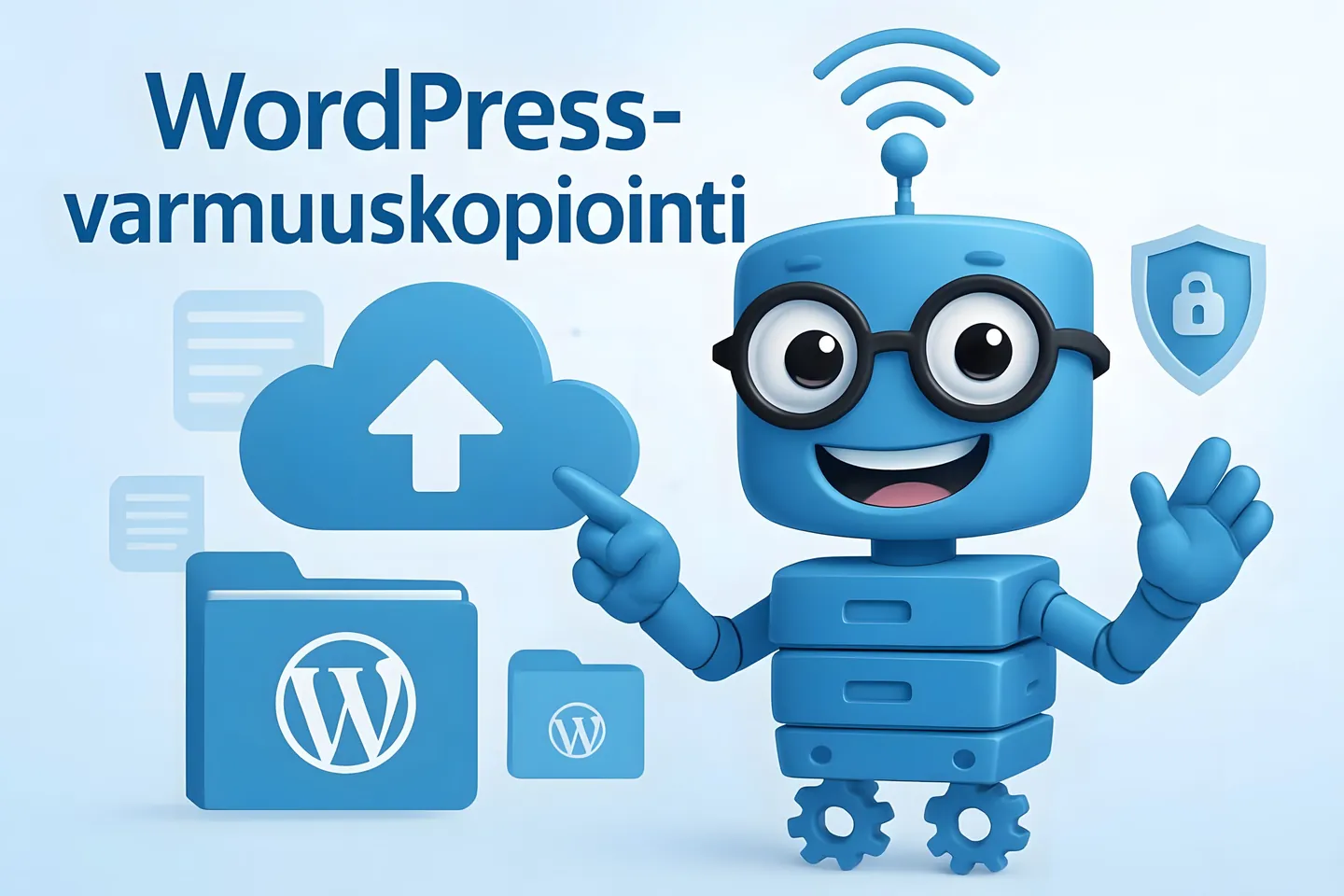
Fortunately, backing up your WordPress site is easy. You can do it with plugins such as All-in-One WP Migration or UpdraftPlus, or by using tools provided by your hosting provider. With these, you can back up your entire site securely with just a few clicks.
Want to make sure your WordPress site stays up to date and reliable without stress? Check out Hostaan's SmartWP web hosting, where WordPress and plugin updates are handled automatically and tested for functionality with Smart Updates technology. This way, you can focus on your content and business – we take care of updates and backups for you.
Why should backup be part of your maintenance routine? A WordPress site often represents hours of work, valuable content, and often forms the foundation of your business. Losing your site almost always causes significant damage, so prevention is always wiser than fixing problems afterwards.
-
Regular backups protect your WordPress site's content and are an essential security measure for all sites.
-
Backups can be easily done with plugins like UpdraftPlus or All-in-One WP Migration, or with your provider's own tools.
-
It's best to store backups in several locations (cloud service, external hard drive) for maximum protection.
WordPress Backup Strategies
Backup is a key part of WordPress site maintenance. Properly executed backups allow you to restore your site quickly in case of problems and bring peace of mind to the administrator.
Manual Backup
Manual backup can be done, for example, with an FTP program (such as FileZilla), downloading all WordPress files to your computer and storing them in a safe place. The database can be backed up via phpMyAdmin by exporting the database as an SQL file.
With many web hosts, such as us at Hostaan, backups can also be managed via the control panel. In the Plesk control panel, creating and restoring backups is effortless – see instructions here.
Automatic Backup with Software
Automatic backup tools make maintenance easier and ensure that backups are taken regularly without manual work. Popular plugins include UpdraftPlus, BackWPup, and All-in-One WP Migration.
Many web hosts, such as all Hostaan web hosting plans, offer scheduled backups as part of their service. This way, backups are handled in the background without any extra steps.
Remember to check from time to time that automatic backups also work and are restorable. It's good practice to test restoring backups occasionally in a test environment.
Storage Locations and Their Management
Choosing where to store your backups is an important part of securing your WordPress site. Cloud services offer a safe and easily accessible storage location, but external hard drives and other physical storage devices are also useful. This way, you ensure your data is safe even in case of hardware failure or other accidents.
Local Backups and Their Risks
Local backup means saving files to your own computer or server. This is an easy way to start, but it comes with risks such as possible hardware failure or running out of space. Therefore, it's always wise to complement local backups with another storage solution.
If you use Hostaan's WP or SmartWP web hosting, you can easily set up automatic backups in the Plesk control panel – see instructions here.
Cloud Services for Backup Storage
Cloud services like Google Drive and Dropbox offer a secure option for storing WordPress backups. They enable automatic synchronization and access to files from anywhere.
You can also use Hostaan's managed Nextcloud service, which provides a Finnish and secure solution for storing backups as well as easy file sharing and management.
Restoring Backups
Backups are only useful if you can restore them when needed. Most plugins offer an easy restore function, and in web hosting control panels, restoring is usually just a few clicks away. It's recommended to test the restore process regularly to ensure it works when you need it.
Frequently Asked Questions About WordPress Backups
How often should I back up my WordPress site?
The frequency of backups depends on how often you update your site. If you make updates daily, daily backups are also recommended. At least once a month, you should take a full backup, even if your site is fairly static. Before major updates, such as WordPress core, theme, or plugin updates, it's always wise to make a backup.
Incremental backups are also worth using to save space. In this method, only changed files are saved, so you can back up even every day. Read more about incremental backups.
Can I back up my WordPress site automatically and how?
Yes, WordPress site backups can be easily automated. For automatic backups, you can use various WordPress plugins such as UpdraftPlus, BackupBuddy, or WP Time Capsule. Another option is to use a hosting service that offers scheduled backups. For example, Hostaan provides scheduled backups as part of its WordPress hosting services, making the process effortless. Scheduled and automatic backups are easy to enable from the Plesk control panel.
Additionally: In Hostaan's SmartWP web hosting you get automatically tested WordPress and plugin updates with Smart Updates technology – so your site always stays up to date and secure without extra hassle or the risk of your site breaking due to a failed update.
If something still goes wrong, how do I restore my WordPress site from a backup?
Restoring a backup is usually straightforward. If you use a backup plugin, it typically has an easy-to-use restore function. The restore process varies slightly depending on the tool used, but usually includes the following steps:
-
Log in to your WordPress admin panel or hosting control panel
-
Open the backup plugin
-
Select "Restore" or a similar function
-
Choose the backup you want
-
Follow the on-screen instructions
If you use the backup service provided by your web host, you can often restore your site via the Plesk or cPanel control panel or ask customer support for help. See detailed instructions for restoring a Plesk backup in the Hostaan guide article.
How can I protect my backup data from loss or damage?
A good practice is the 3-2-1 backup rule: keep at least three copies of your data on two different media, and keep one copy in a different location. Store one backup in cloud services like Google Drive, Dropbox, or Hostaan's managed Nextcloud. Test restoring your backups regularly: backups you can't restore when needed are of no use.