Creating a Child Theme in WordPress – a Safe and Effective Way to Customize Your Site
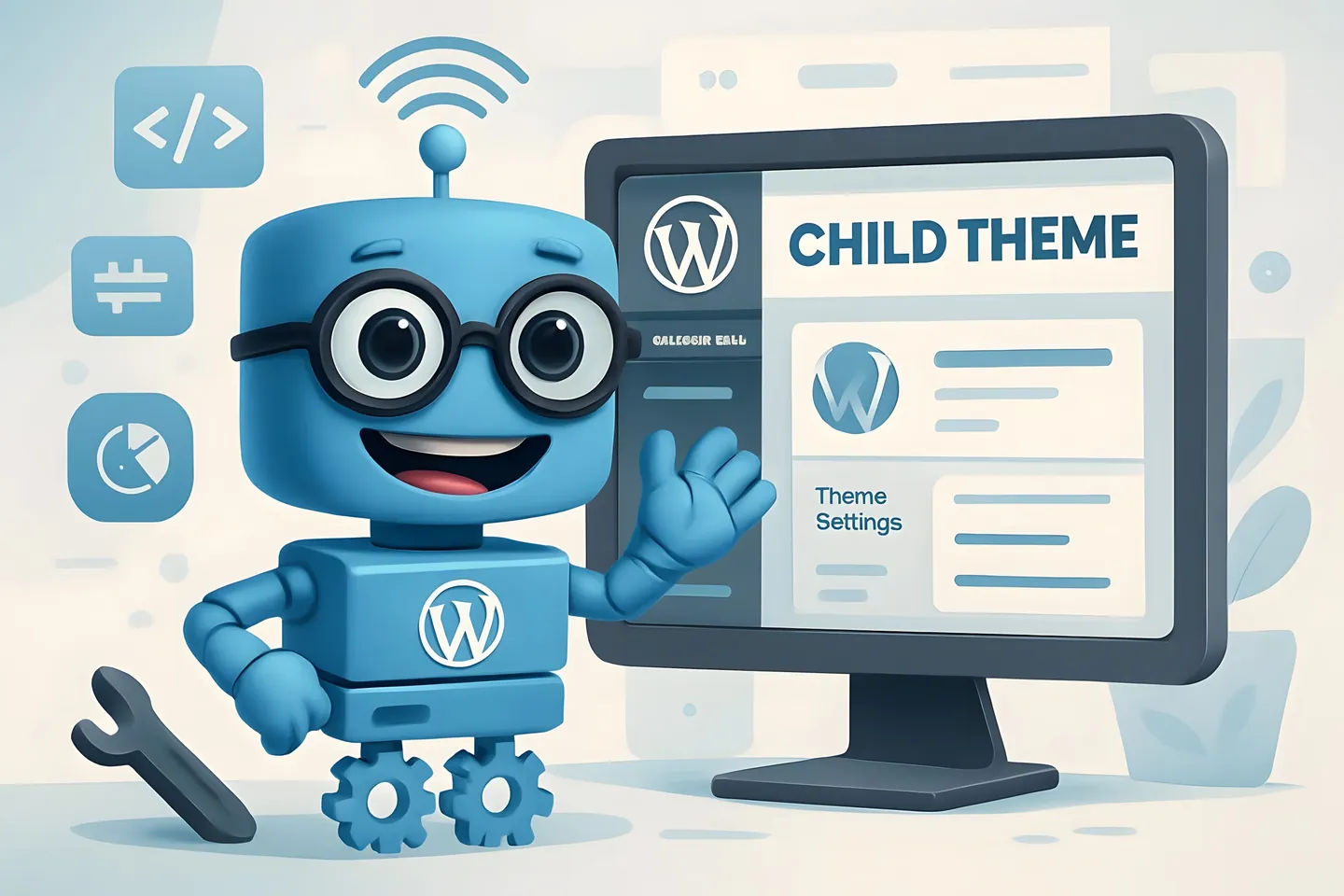
Creating a child theme in WordPress is an easy and effective way to customize your website without "damaging" the original theme (parent theme). The child theme acts like an additional layer on top of the parent theme – preserving all the original features but giving you the freedom to make big or small changes. With a child theme, you can safely modify your WordPress theme’s appearance and functionality without losing your changes when the theme is updated.
To start creating and using a child theme, you only need to create a few folders and files in your WordPress installation:
- First, create a new folder in your WordPress installation’s themes directory (for example, theme-child)
- Add the files style.css (mandatory) and functions.php (optional) to the created folder
- Once the child theme is active, you can safely update the original theme without fear of losing your changes. This saves time and effort.
A child theme is an excellent choice when you want to customize your WordPress site professionally.
Basics of Creating a Child Theme
Using a child theme is one of the best ways to safely customize a WordPress theme. It is an important tool that helps preserve your theme changes after new theme versions and makes maintaining your site easier.
What is a child theme?
A child theme is a theme that "inherits" its functionality and appearance from a parent theme. It allows you to customize the theme without touching the original theme.
The biggest advantage of a child theme is that you can update the parent theme safely without losing your changes. Updates are essential for security and new features.
Technically, WordPress first loads files from the child theme. If a file is missing, it uses the parent theme’s file. This way, you only override the parts you want to change.
You don’t always need a child theme – if you only make small changes via the theme customizer, the parent theme alone is enough. But if you edit PHP or CSS files, a child theme is a must.
Choosing the Parent Theme
Choose a well-maintained and regularly updated theme as your parent theme. A good parent theme forms a stable foundation for your site.
Consider the following when selecting a theme:
-
Update frequency: An actively maintained theme receives regular updates
-
Reviews: Check user reviews and download counts
-
Responsiveness: Ensure the theme works quickly on all devices
-
Supported plugins: Compatibility with popular plugins
It is recommended to choose a theme from WordPress.org or a trusted developer. This ensures the theme is secure and well-coded.
Note that many premium themes make excellent parent themes. They usually have good support and documentation, which makes creating a child theme easier.
Creating the Directory and Files for the Child Theme
Creating a child theme starts by making a directory in your WordPress installation’s themes folder, usually located at wp-content/themes/.
Follow these steps:
-
Create a new folder in wp-content/themes. Name it after the parent theme, for example "themename-child"
-
Create a style.css file in the folder. This file defines the child theme and its connection to the parent theme.
-
Optionally add functions.php, where you can add functionality or enqueue styles.
At the beginning of style.css, there must be a comment block that tells WordPress the theme details:
The "Template" line is critical – it must exactly match the parent theme’s folder name.
/*
Theme Name: Themename Child
Theme URI: http://yourwebsite.com/
Description: Themename Child Theme
Author: Your Name
Author URI: http://yourwebsite.com/
Template: themename
Version: 1.0.0
*/
Activating and Editing the Child Theme
Once the child theme is created, the next step is to activate it and customize it to your needs. Editing mainly happens through a few key files, with style.css playing the central role.
Adjusting the Appearance
Modifying the child theme’s appearance is easy and safe. You can make small or large changes without altering the parent theme’s files.
How to customize the appearance effectively:
-
Inspect parent theme elements using your browser’s developer tools
-
Copy CSS rules into your own style.css file
-
Modify the values as you wish
Example of a simple change:
body {
    background-color: #f5f5f5;
    font-family: Arial, sans-serif;
}

.site-title {
    color: #0066cc;
    font-size: 36px;
}
Remember, child theme styles override parent theme styles if they target the same element!
Adding Code to the Child Theme
To add functionality to your child theme, you need a functions.php file. Unlike style.css, functions.php does not replace the parent theme’s file but works alongside it.
Create the functions.php file like this:
<?php
// Add your code here
function my_theme_scripts() {
    // Example: loading the parent theme CSS
    wp_enqueue_style('parent-style', get_template_directory_uri() . '/style.css');
    wp_enqueue_style('child-style', get_stylesheet_directory_uri() . '/style.css', array('parent-style'));

    // Example: loading a JavaScript file
    wp_enqueue_script('my-script', get_stylesheet_directory_uri() . '/js/script.js', array('jquery'), '1.0', true);
}
add_action('wp_enqueue_scripts', 'my_theme_scripts');
You can also override parent theme template files (e.g., header.php) by copying them into your child theme and making your changes there.
Install and Activate the Child Theme
After making the necessary changes to your child theme, activate it by going to your WordPress admin panel. Navigate to "Appearance" -> "Themes" and click "Activate" on your created child theme.
Reliable Hosting Provider for Your WordPress Site
If you want a reliable web hosting for your WordPress site, choose the Finnish company Hostaan Oy. We have over 15 years of experience and fully monitored, high-speed servers located in Finland.