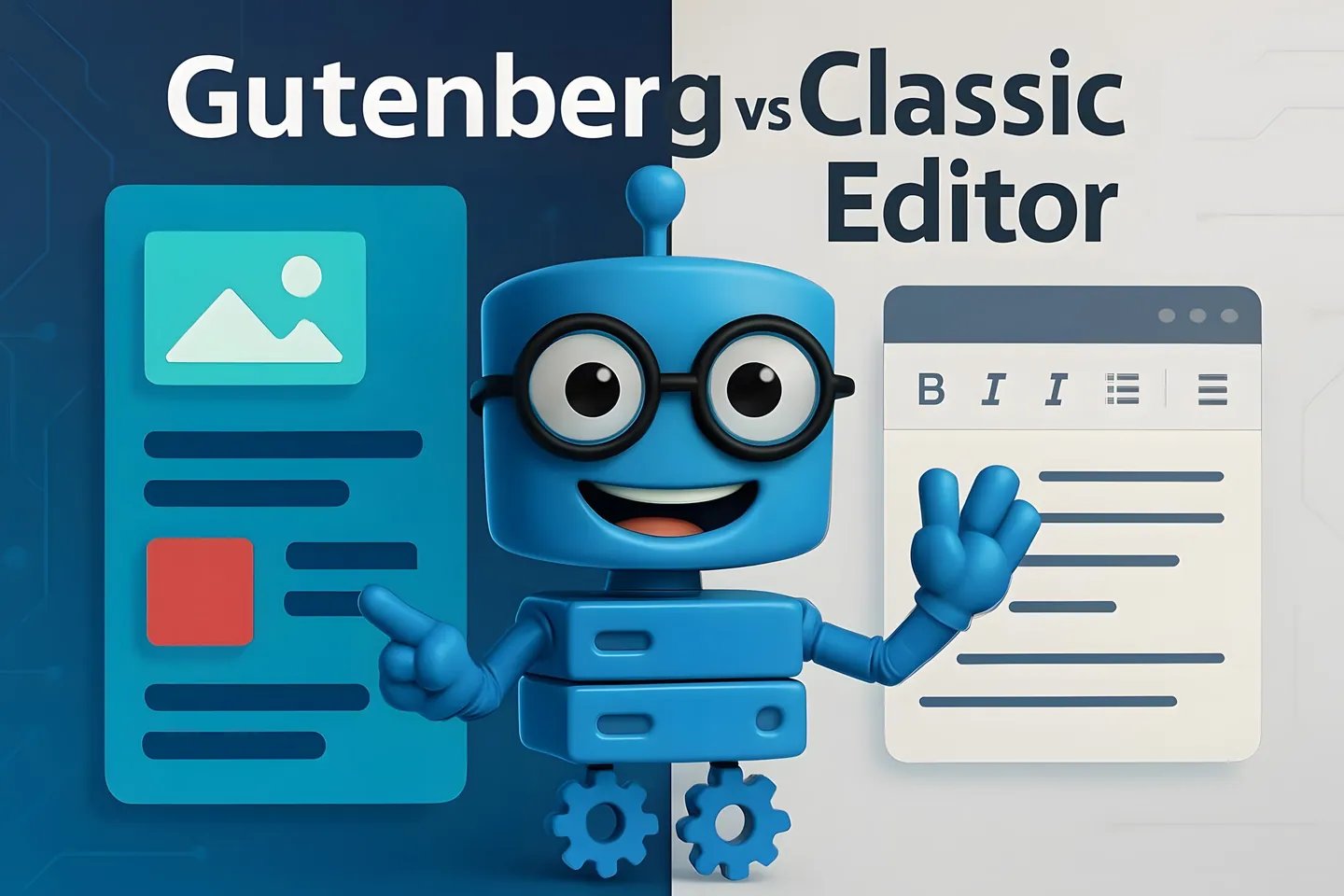
WordPress got a new Gutenberg block editor in 2018, which revolutionized content production for websites. In the editor, content is divided into blocks, such as text paragraphs, headings, and other elements.
The Gutenberg editor makes WordPress site content production easier and more flexible. You can add, move, and edit blocks easily with the "drag and drop" method.
Using the editor may feel a bit complicated at first, but using the block editor offers many advantages compared to the old "Classic editor".
You can easily add blocks with the keyboard, copy and paste multiple blocks at once, and arrange them freely. Gutenberg gives you more control over design customization without coding skills. With the block editor, you'll build impressive pages faster than before. Work becomes more efficient and leaves more room for creativity.
Block Editor Basics and User Interface
The Gutenberg editor (block editor) changes the way you create content in WordPress. It's based on block thinking, where each content element is its own block.
This makes content production easier and more visual.
Getting Started with Gutenberg
The Gutenberg editor is now WordPress's default view. When you create a new post or page, the editor opens automatically. The interface is streamlined and clear: the toolbar appears at the top and settings in the left sidebar.
You add blocks by clicking the plus icon in the upper left corner. The blocks are organized into categories:
- Most common blocks: paragraph, heading, image, list
- Formatting: table, lines, quotes
- Structure: columns, groups, buttons
You can move from block to block with arrow keys or mouse.
However, if the editor doesn't feel right for you, you can also install the "Classic Editor" plugin and return to the old view. But give the block editor a chance first!
"Jumping" and Locking
In Gutenberg, you move easily from block to block: arrow keys work great for navigation.
When you want to protect finished content from changes, you should lock the content. Locking is easy:
- Select the block
- Click the three dots in the block menu
- Select "Lock"
From the left sidebar navigation, you can see all blocks on the page listed. It helps to visualize large entities and with the "jump to block" function, you can quickly get to the right spot in a long article.
Using Widgets in Page Design
Gutenberg enables the use of widgets directly in content. This brings flexibility to page design.
You can add a calendar, latest posts, or even a search field directly to the content. Widgets can be found in the block menu under the "Widgets" category.
- Calendar
- Recent comments
- Categories
- RSS feed
With widgets, you can make your pages impressive without coding. You can group widgets into columns and adjust their settings directly in the editor.
Many WordPress themes also offer their own blocks (widgets) that fit well with the theme's overall look. It's worth trying different widgets to find the best solutions for your site.
Gutenberg's Impact on Performance and Conversions
The continuous development of the Gutenberg editor has brought major improvements to WordPress site performance. New updates speed up site loading times, and this is essential especially for e-commerce conversions.
Studies have shown that every second a page loads slower can drop conversion by up to 7%. Gutenberg developers have really taken this problem seriously.
The latest improvements bring, for example:
- Block "lazy loading" that prioritizes visible content
- Automatic image optimization
- JavaScript code caching
So your site works faster and more efficiently with the block editor. In practice, this shows as better conversion numbers and more satisfied customers.
Hostaan's fast WP web hosting ensures that your site works without delays. Fast page loading speed is key when aiming for a higher conversion rate.
Frequently Asked Questions About Gutenberg Editor
How do I add a new block in Gutenberg?
Adding a new block is easy. In page editing mode, click the + button, which is located in the upper left corner or between each block.
You can also press Shift+Enter to get a new line and block. Another handy way: type / and a keyword, like "/image", and the image block is found quickly.
Can I use the Gutenberg editor to edit my old pages?
Yes you can! All WordPress pages and posts, including those made with the old editor, can be edited with Gutenberg.
Older content initially appears as one "Classic Block" element. You can edit the content directly in this block or convert it to Gutenberg blocks by selecting "Convert to blocks" from the block settings.
After conversion, each paragraph, image, and other element becomes its own block, which can be easily handled with Gutenberg features.
Is there an easy way to move content from one block to another?
Yes indeed! You can copy and paste content from one block to another using keyboard shortcuts (Ctrl+C and Ctrl+V) or the block toolbar's copy button.
Entire blocks can be moved by dragging them up or down on the page. Grab the six-dot icon shown on the left side of the block and drag the block to where you want it.
You can also copy an entire block by selecting it, clicking the three dots in the toolbar, and selecting "Duplicate" from there. This way you get a similar block right after the original.
How can I edit or style blocks to get a unique look?
You can edit each block's style from the block's own settings, which are found in the right sidebar. Click the block you want, and its settings will appear.
Basic settings usually include:
- Color options, i.e. text and background colors
- Margins and padding
- Borders
Also consider creating a WordPress child theme when you want to customize your site's appearance.