WordPress, plugins and themes need regular updates. If your plan does not include managed updates, open WordPress in Plesk and select the installation you want to maintain.
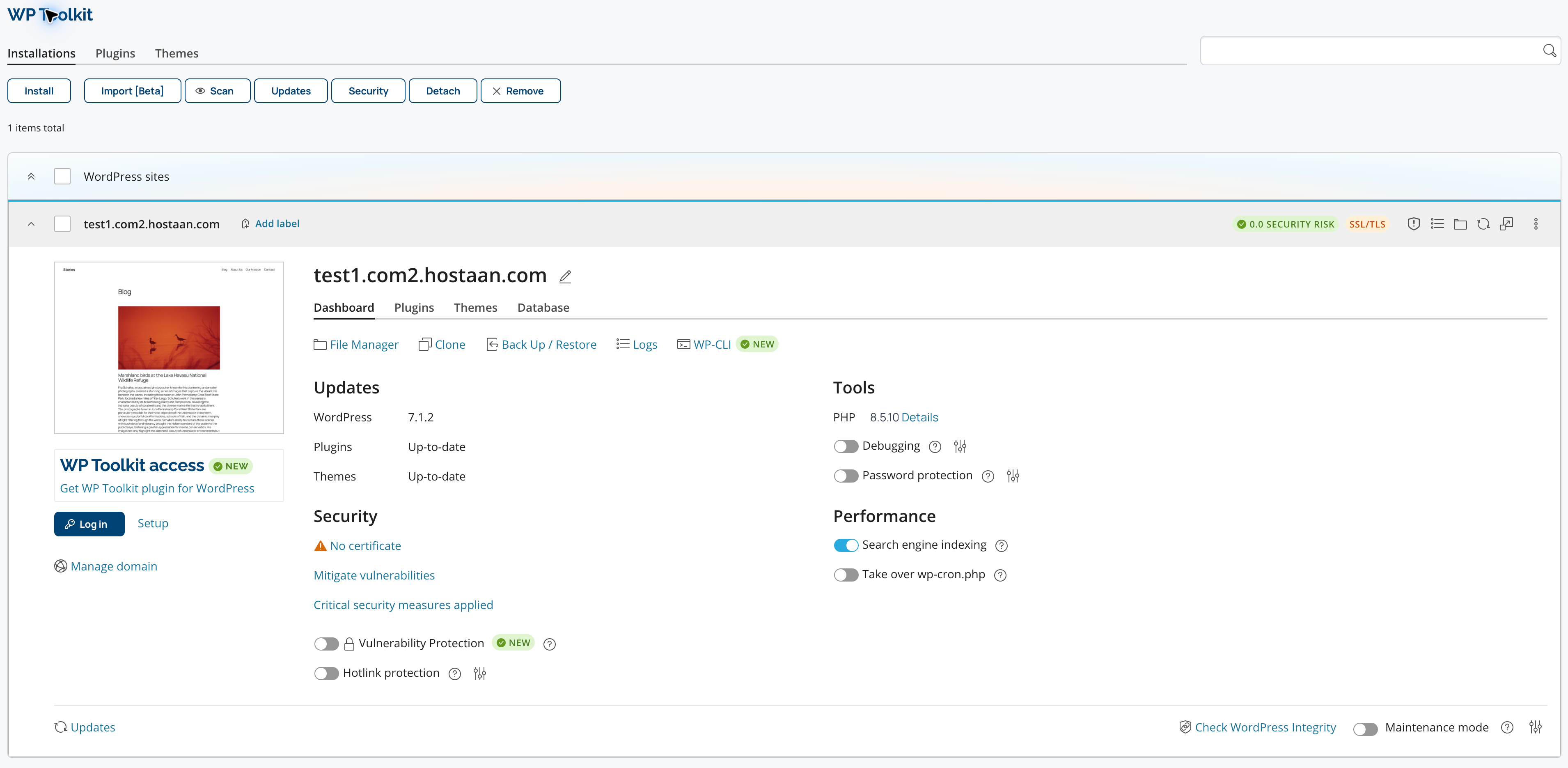
Back up before updating
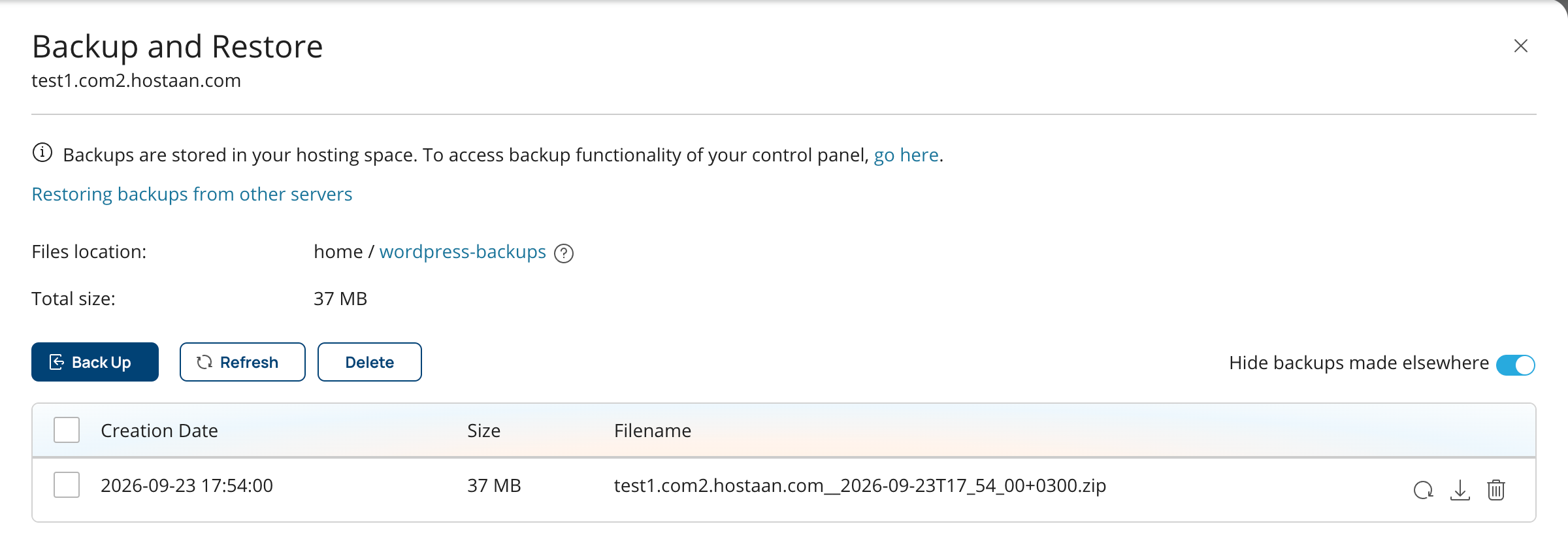
Open Back Up / Restore, click Back Up and wait until the backup appears in the list. The example below shows an existing backup. Keep a backup from before the update so you can restore the site if needed.
Check for updates
Close the backup panel and click Updates. Use Check for Updates to refresh the list. In this example the site is up to date, so the panel displays No updates found.
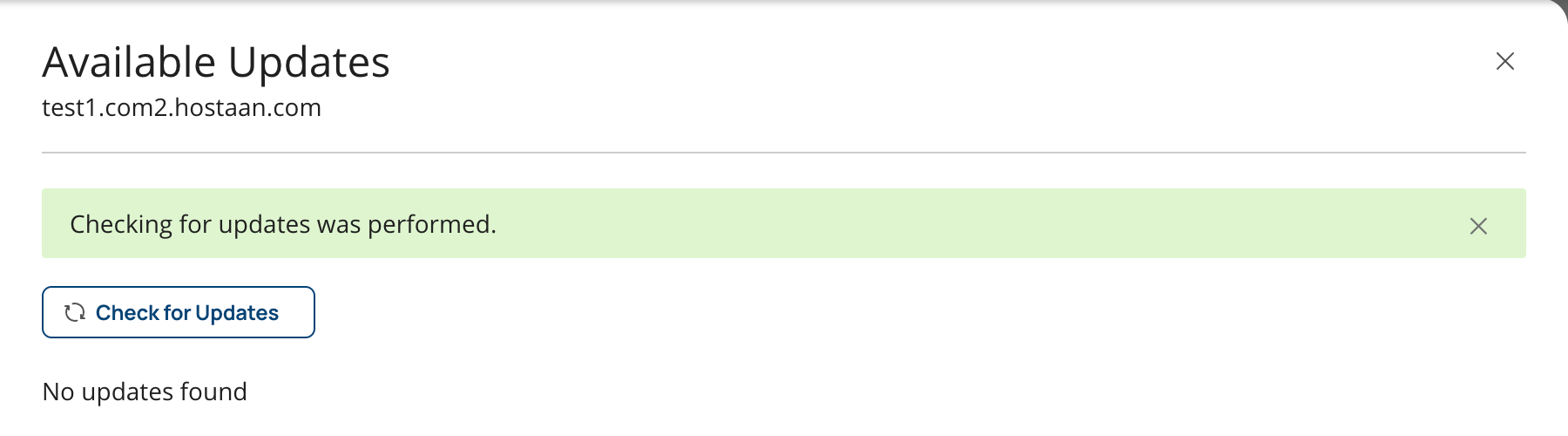
When updates are available, review and select the WordPress core, plugin or theme updates you want to apply. Follow the update controls shown in the panel. After completion, check the website and its important functions. If necessary, restore the backup taken before updating from Back Up / Restore.
Review automatic update settings for your installation and hosting plan. Automatic updates still require monitoring for compatibility problems. SmartWP plans include managed updates.