Plesk includes WP Toolkit for installing and managing WordPress. Select the correct subscription, open WordPress in the left menu and click Install.
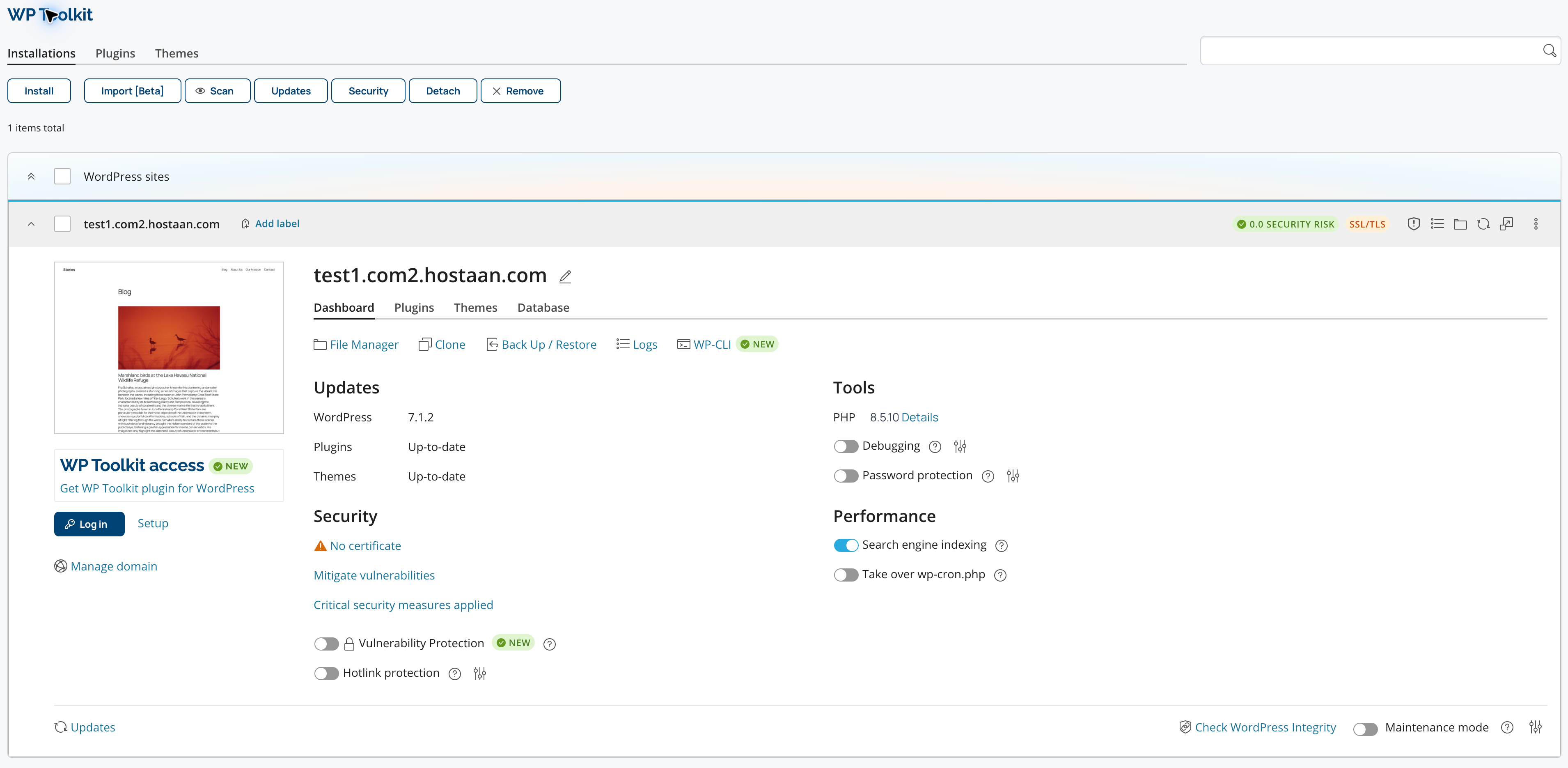
Choose the installation options
Check the domain and Installation path. The example installs WordPress in /wordpress. Leave the path empty only if you want the website at the domain root and that location does not already contain a website you need to preserve.
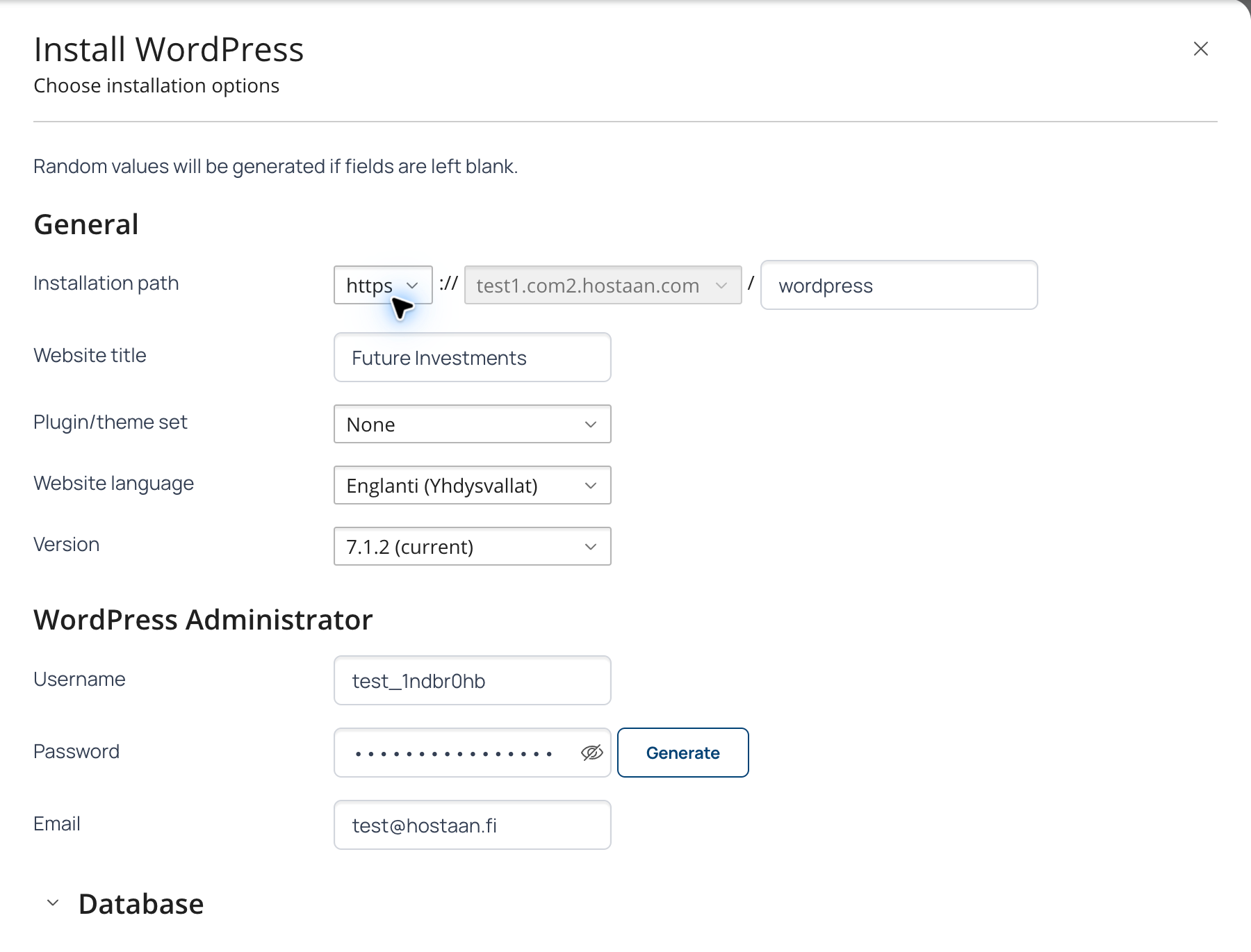
Set the website title, language and optional plugin/theme set. Check the WordPress administrator details and email address. The Database section contains the database options; WP Toolkit can create the database automatically. Click Install at the bottom of the panel when the settings are ready.
After installation, the site appears in WP Toolkit. Use Log in to open WordPress administration. Plugins and themes can be managed from their respective tabs.
Keep WordPress updated
Review the update policy after installation. The options available depend on your hosting plan and WP Toolkit version. Regularly update WordPress, plugins and themes, and take a backup before changes. See Updating WordPress with WP Toolkit.
SmartWP hosting includes managed WordPress updates. With other plans, make sure someone is responsible for keeping the site updated.