A mailbox that is completely full to the brim prevents mail deletion with default settings.
Update: With the new Roundcube version, this guide is partially outdated. You can delete messages from a full mailbox by also pressing the Shift+Del key combination after selecting the messages to be deleted.
The reason for this is the mail deletion process, in which a copy of the mail is first created in the trash, after which the original message is deleted. If the email account is full to the brim, a copy of the original message cannot be created in the trash because there is no space to create the copy.
You can change the settings so that the message is marked as deleted, but it is not moved to the trash at all. The message is deleted upon logout during folder cleanup.
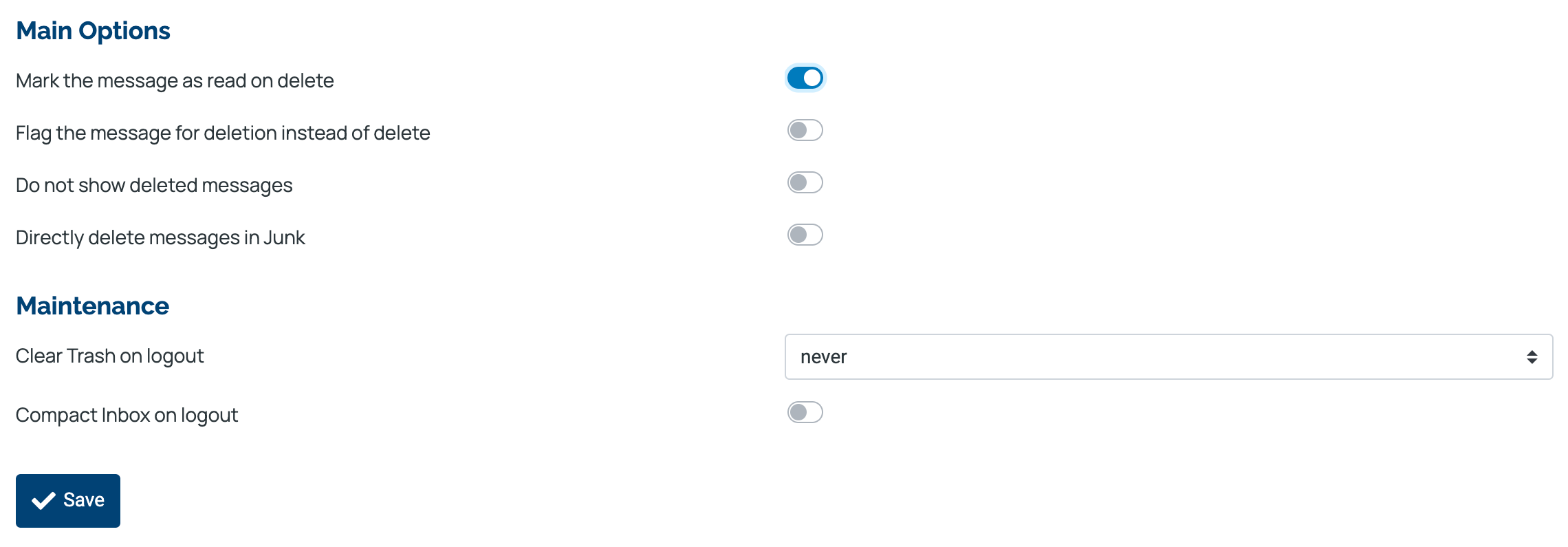
The setting can be found following this path starting from the left: Settings -> Preferences -> Server Settings, where you enable Flag the message for deletion instead of delete and Compact Inbox on logout, then click Save. These two switches are still off in the example screenshot.
This way, messages to be deleted get a marking and they turn gray in the mail view. When you log out, the mail is removed from the system.
With this setting, deleted mails cannot be restored after deletion like those that go to the trash, so restore the setting to its original state after cleaning.