
A separate WordPress account for your website developer
If your developer needs access to one WordPress website, create an individual user account in that website's WordPress administration. Assign the role required for the work.
You do not need to share your own Hostaan customer panel account or WordPress password. The new WordPress account does not sign in to the Hostaan customer panel, Plesk or email.
The screenshots use WordPress 7.1.3 and fictional example details. In some versions, Add User is labelled Add New or Add New User. The selected Editor role is an example: choose the role required for the work.
Open the correct WordPress website
- Sign in to the WordPress administration of the website you want to grant access to. The address is usually
https://your-domain.fi/wp-admin/. Replace the example domain with your own website's address. - You can also open WordPress through the Hostaan customer panel and Plesk's WordPress Toolkit. See the login guide.
- Check the website's address. In the left-hand menu, open Users → Add User.
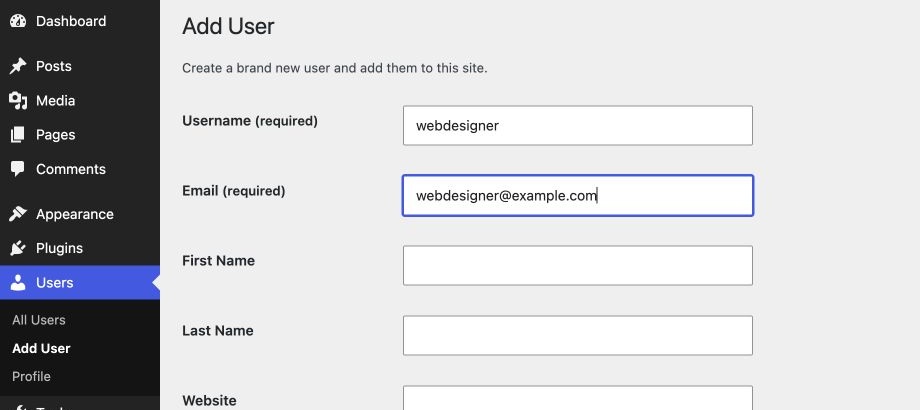
You need permission to create users, normally the Administrator role. If the Users menu or Add User option is missing, ask the website's administrator to create the account.
Enter the new user's details
- Enter a unique Username, for example
webdesigner. Choose it carefully: the standard user profile does not let you change it later. - Enter the developer's own, working Email address. They need it to set and reset their password.
- You may also enter their first and last names. These are not the login username.
- Keep the new-user email notification selected so WordPress sends the user their login information and a password setup link.

Let the user set their own password using the email link. Do not send them your own password or a screenshot of the password field.
Choose a role for the work
| Role | Suitable tasks |
|---|---|
| Editor | Managing pages, posts and images. Does not normally allow installing themes or plugins. Usually suitable for a content editor. |
| Administrator | Building the website, changing settings and managing themes and plugins. Only assign it to a trusted person who needs these broad permissions. |
| Author | Writing and publishing the user's own posts. Usually insufficient for managing the whole website's content or pages. |
Select the required Role. If the developer only updates text and images, start with Editor. Ask whether they need permissions such as installing themes or plugins.

Plugins and page builders may change role permissions or provide additional access controls. WordPress Multisite networks handle some user and role management differently; ask the network administrator for help if needed.
Create the account and share the login address
- Check the email address and role, then click Add User.
- Check that WordPress confirms the user was added and that the account appears in the Users list.
- Ask the developer to open the WordPress email and set their own password. Also send them the login address for the correct website.

If the message does not arrive, check the spam folder and the user's email address. They can request another password link using Lost your password? on the WordPress login page.
Review access after the work
When the work is finished, reduce the user's role if they will only update content. If access is no longer needed, delete the account with care.
When deleting a user, WordPress may ask what to do with their content. To keep it, attribute it to another user. Do not choose to delete the content if you only intend to remove account access.
If the developer also needs file or hosting control panel access, see the guide to creating a Plesk user account and restricting its permissions.
Further reading
WordPress: adding a new user · WordPress: roles and capabilities